

By: Gaming Tech Desk
Published: October 2023
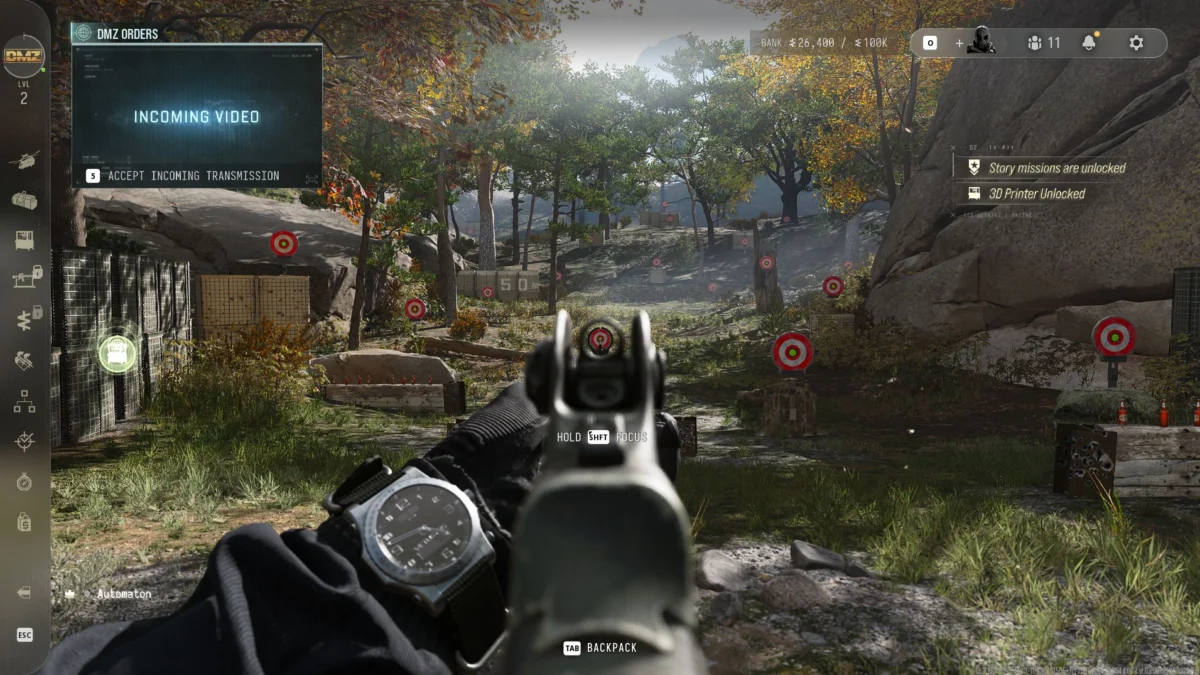
As PC gamers eagerly count down the hours to the global launch of Call of Duty: Modern Warfare 4, a hidden roadblock is catching a significant portion of the community off guard. Activision’s latest blockbuster title requires more than just a powerful graphics card and an updated GPU driver to run smoothly. Players attempting to jump into online multiplayer and DMZ game modes are running headfirst into mandatory hardware-level security protocols that demand both Secure Boot and specific iterations of Trusted Platform Module (TPM 2.0) technology.
Even worse, simply having these features enabled in your system’s motherboard is frequently not enough. Thousands of players—including seasoned hardware editors and industry professionals—are discovering that legacy firmware versions of Intel’s Platform Trust Technology (PTT) and AMD’s Firmware Trusted Platform Module (fTPM) are outright incompatible with the game. For many, the only way to bypass these sudden initialization failures and launch Modern Warfare 4 is to perform a complete motherboard BIOS update.
Main Facts: The Security Mandate Behind Modern Warfare 4
The core of the issue stems from Activision’s aggressive anti-cheat measures implemented for Call of Duty: Modern Warfare 4. Like other modern competitive shooters (such as Battlefield 6), the publisher has tightened its software integrity checks, leveraging low-level hardware authentication to ensure that the operating system kernel hasn’t been tampered with before the game launches.

To play Modern Warfare 4 online, your PC must meet the following criteria:
- Secure Boot Enabled: This cryptographic standard ensures that your PC boots using only software trusted by the manufacturer, preventing rootkits and malicious bootloaders from hijacking the system at startup.
- TPM 2.0 Compliance: Utilizing either Intel PTT or AMD fTPM, the system validates hardware-level cryptographic keys.
- Up-to-Date Motherboard Firmware: Older, unpatched versions of PTT and fTPM—specifically Intel versions in the 302.12.. / 303.12.. range and AMD versions in the 3.X.0.X* range—fail compliance checks and require an immediate BIOS update.
Failing to meet any of these exact thresholds results in immediate access denial when attempting to queue for online matches or campaigns requiring continuous server validation.
Chronology: How the Requirement Caught Players Off Guard
The implementation of strict TPM and Secure Boot protocols has evolved in waves across the PC gaming ecosystem over the last few years, but Modern Warfare 4 marks one of the most widespread disruptions for mainstream players.
- Late 2021 (The Windows 11 Catalyst): When Microsoft launched Windows 11, TPM 2.0 and Secure Boot became mandatory operating system requirements. However, many users bypassed these requirements through registry tweaks or ran the OS with legacy BIOS configurations, remaining blissfully unaware of their firmware limitations.
- Early 2024–2025 (The Anti-Cheat Shift): Major multiplayer titles began following the lead of Riot’s Vanguard anti-cheat, demanding hardware-enforced virtualization and Secure Boot to combat increasingly sophisticated kernel-level cheating software.
- *The Launch Week Crunch (Present): As review copies and early access builds of Call of Duty: Modern Warfare 4 rolled out, players took to forums and internal Slack channels reporting unexpected initialization crashes. Even users running relatively modern hardware—such as systems equipped with Intel Core i5-12400KF and AMD Ryzen 5 5800X processors—found themselves locked out.
- The Discovery: Activision’s support documentation confirmed that the issue was not broken game files, but rather outdated motherboard firmware that failed to meet the strict cryptographic compliance standards required by the publisher’s security suite.
Supporting Data: How to Diagnose Your System
Before panicking or downloading large firmware files, players can easily check their system’s TPM version to see if they fall into the danger zone.

Step-by-Step Diagnostic Guide:
- Press the Windows Key + R to open the Run dialog box.
- Type
tpm.mscand press Enter. - Look toward the bottom of the window under the TPM Manufacturer Information section.
- Check the Manufacturer Version string.
- For Intel Users: If your version reads
INTC 302.12.*.*orINTC 303.12.*.*(where asterisks represent any number), your motherboard’s PTT implementation is outdated. - For AMD Users: If your version reads
3.*.0.*, your motherboard’s fTPM implementation is incompatible and fails validation.
If your system displays these legacy strings, you will not be able to bypass the block without flashing a newer BIOS version supplied by your motherboard manufacturer (ASUS, MSI, Gigabyte, ASRock, etc.).
Official Responses and Industry Implications
Activision’s updated support pages have quietly emphasized these requirements as non-negotiable for competitive integrity. While hardware communities have long debated the pros and cons of heavy-handed security protocols, developers argue that aggressive measures are the only viable defense against rampant cheating in free-to-play and premium multiplayer ecosystems alike.
However, the friction caused by this rollout highlights a significant communication gap between hardware manufacturers, operating system developers, and game publishers.
The Linux and Legacy Hardware Backlash
The requirement for Secure Boot and strict TPM standards has also drawn criticism from alternative operating system users—most notably the Linux and Steam Deck gaming communities. Because Secure Boot relies on Microsoft-signed keys by default, running titles that enforce these hardware-level checks often breaks compatibility layers like Proton, alienating a vocal sector of the PC enthusiast base.
Furthermore, forcing users to update their BIOS carries inherent risks. While modern motherboards feature flashback buttons and crash-free BIOS recovery tools, a botched firmware update can still "brick" a motherboard, rendering it completely useless. For everyday consumers who have never ventured into the UEFI settings menu, performing a BIOS update just to play a video game feels like an excessive and stressful hurdle.
Practical Guide: How to Update Your BIOS and Get Ready for Modern Warfare 4
If your diagnostic check reveals that your system requires a firmware update, or if your BIOS is several years out of date, follow this comprehensive guide to get your rig battle-ready.
Step 1: Identify Your Motherboard
Before downloading anything, you need to know your exact motherboard model.
- Open the Windows Start menu, type
System Information, and hit Enter. - Look for BaseBoard Manufacturer and BaseBoard Product.
- Alternatively, download a trusted utility like CPU-Z and check the "Mainboard" tab.
Step 2: Download the Latest BIOS
- Navigate to the official support website of your motherboard manufacturer (e.g., ASUS, MSI, Gigabyte, or ASRock).
- Search for your specific motherboard model.
- Go to the Support / Downloads / BIOS section.
- Download the most recent non-beta BIOS version available. (Note: Read any release notes carefully, as some updates require installing intermediate versions first).
- Extract the downloaded file onto a clean, FAT32-formatted USB flash drive.
Step 3: Entering the UEFI BIOS
If you cannot access your BIOS via the traditional spamming of the Del or F2 keys during boot (often caused by fast startup features or multi-monitor configurations):

- Open Windows Settings.
- Go to Update & Security / System > Recovery.
- Under Advanced startup, click Restart now.
- Once your PC reboots to the blue options menu, navigate to Troubleshoot > Advanced options > UEFI Firmware Settings and click Restart.
Step 4: Flashing the BIOS
- Once inside your UEFI BIOS, locate the flashing utility tool (e.g., ASUS EZ Flash, MSI M-Flash, Gigabyte Q-Flash).
- Select your USB drive and choose the downloaded BIOS file.
- Initiate the update process. Crucial Warning: Do not turn off your PC, restart, or unplug the power cable while the flash is in progress. Doing so can permanently damage your motherboard.
- Allow the system to restart automatically once the update completes.
Post-Update Configuration Checklist
Updating your BIOS wipes your custom settings back to factory defaults. Once your system boots back into Windows (or attempts to boot Modern Warfare 4), you will need to reconfigure several vital performance and security settings:
- Enable Secure Boot: Navigate to the Security or Boot tab in your BIOS and ensure Secure Boot is toggled to "Enabled" or set to "Standard/Custom" mode depending on your board.
- Verify TPM/PTT/fTPM: Ensure that Intel Platform Trust Technology (PTT) or AMD CPU fTPM is turned on in the security settings.
- Re-enable Memory Profiles (XMP / EXPO): Your RAM will likely have reverted to its base JEDEC speed (often 2133MHz or 2666MHz). Go to the overclocking/AI Tweaker menu and re-enable your memory profile to restore your RAM to its advertised high-speed timings.
- Check Boot Priority: Ensure your primary NVMe or SSD containing Windows is set as the first boot device.
- Enable Resizable BAR (ReBAR): Located in Advanced or PCIe settings, keeping ReBAR enabled is essential for modern GPU memory efficiency and maximum framerates in Modern Warfare 4.
Once these steps are completed, boot back into Windows, verify via tpm.msc that your manufacturer version is up to date, and launch Call of Duty: Modern Warfare 4 with confidence. Taking the time to perform this maintenance now will save you from frustrating launch-day crashes and ensure your entire system is operating at peak stability, security, and performance.

